Nexus Launcher
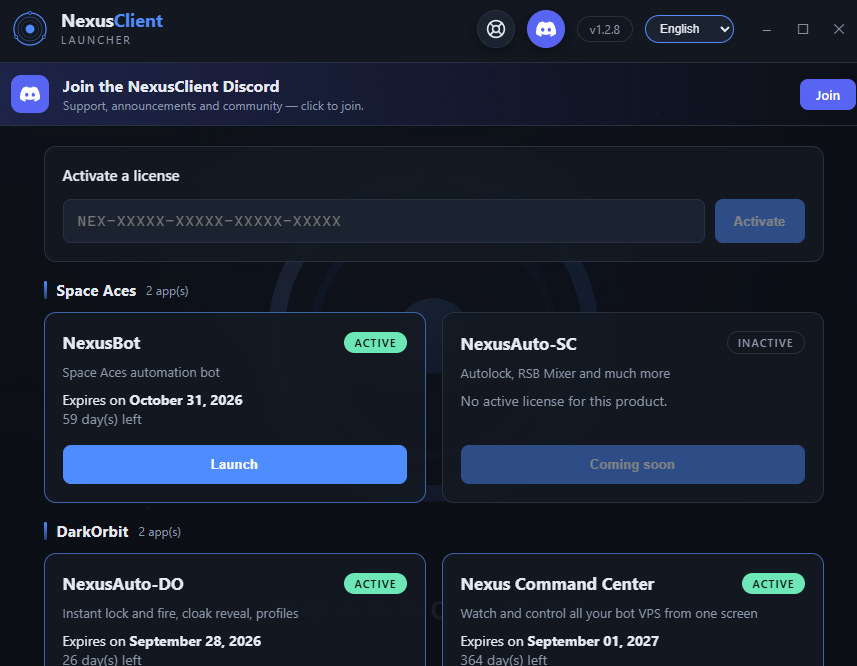
The Nexus Launcher is the single point of entry to the entire NexusClient ecosystem. It allows you to launch, manage and update** all Nexus products** from a single application, without having to juggle between multiple files or shortcuts.
Download the launcher
To get started, download the Nexus Launcher and then install it on your computer:
EXENexusClient-Setup.exeTéléchargerOnce the download is complete, run the installation file and follow the steps.
Attention
Always download the launcher from this official link. Never trust a file shared by a third party.
What is the launcher used for?
The launcher brings everything together in one place:
- Launch of all Nexus products — NexusBot, NexusAutoLock, Nexus Command Center and future tools can be launched directly from the launcher.
- Automatic updates — your products are always up to date, without the need for manual downloads.
- Managing your licences — see the status of your keys at a glance.
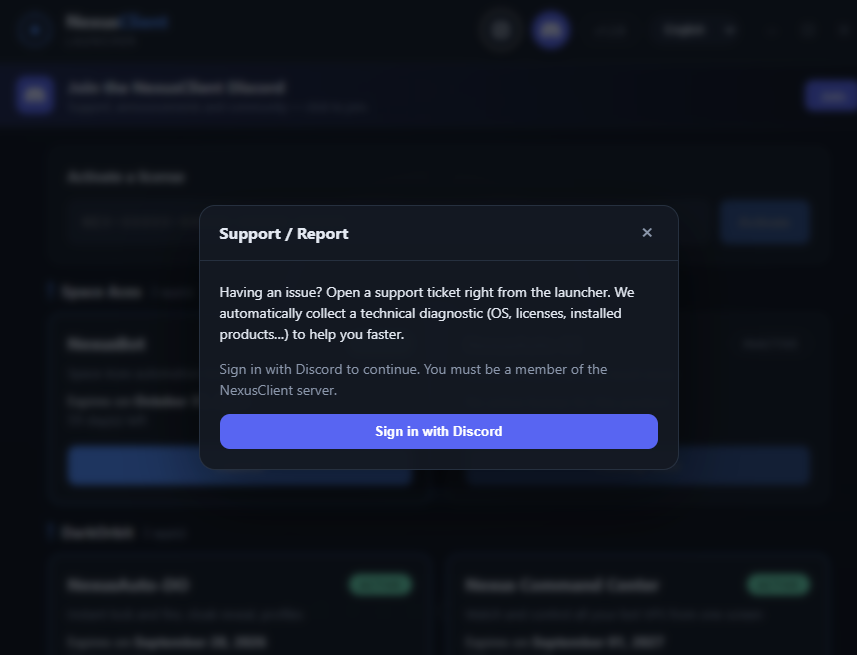
- Built-in login and support — log in and contact the team without leaving the app.
Note
A single launcher for the entire ecosystem: no need to install each product separately.
Log in with Discord
The launcher logs in directly to your Discord account.
Tip
The Discord connection enables the launcher to recognise your licences and link your products to your account automatically.
Create a ticket from the launcher
There’s no need to go to the Discord server to ask for help: you can open a ticket directly from the launcher.
- Go to the Support section of the launcher.
- Click on Create a ticket.
- Please describe your enquiry (purchase, technical issue, HWID reset, etc.).
- The ticket is created and the team will reply to you directly.
How do I enter a key?
To activate a product, simply enter your licence key:
- Open the launcher and log in.
- Select the product you wish to activate (NexusBot, NexusAutoLock, etc.).
- Click on Enter a key.
- Paste your key into the field provided.
- Confirm: the product is activated and ready to be launched.
Please note
A key is personal and linked to a single user. Sharing or reselling a key will result in its revocation without a refund.
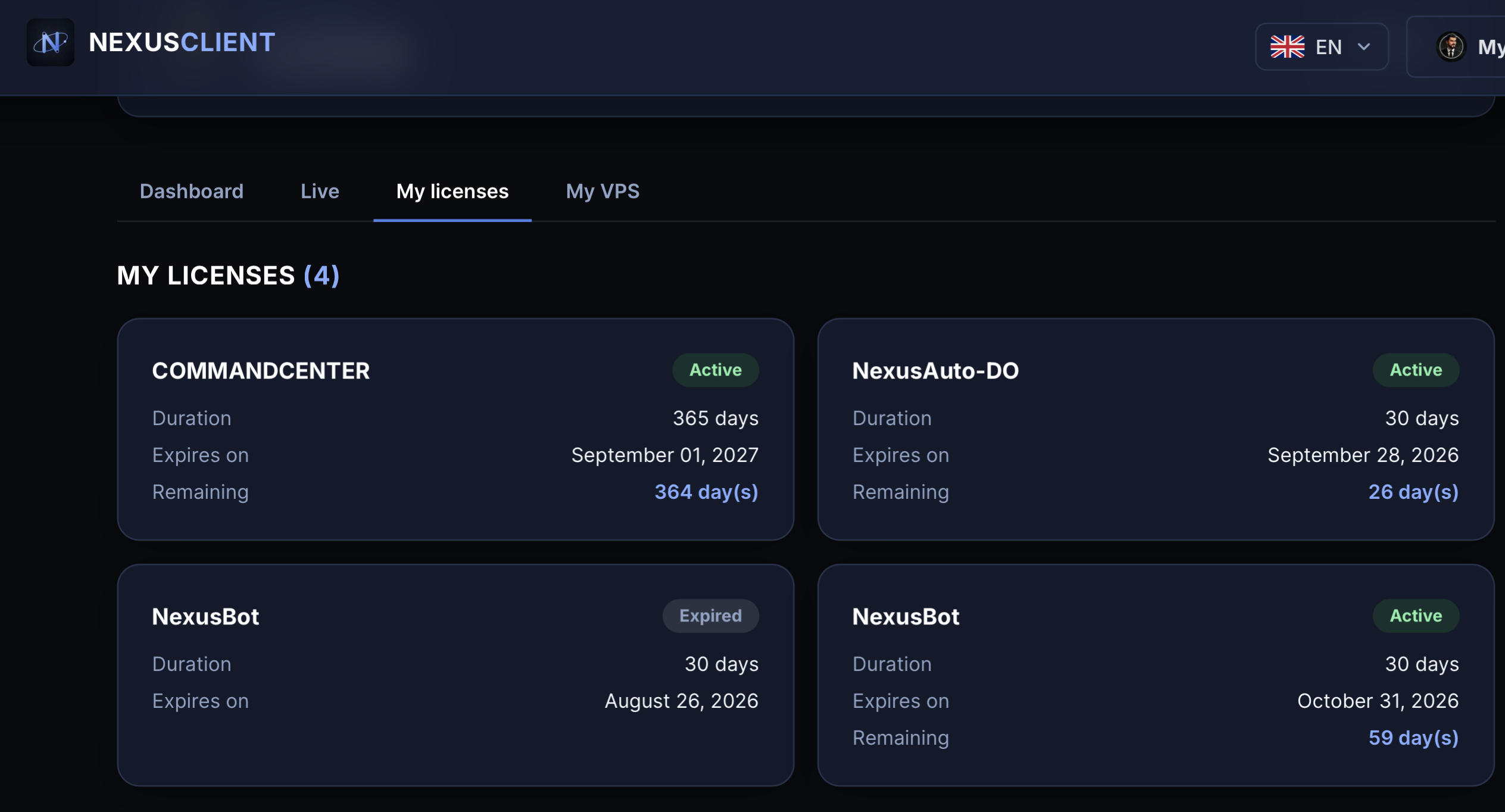
View the status and remaining validity of a key
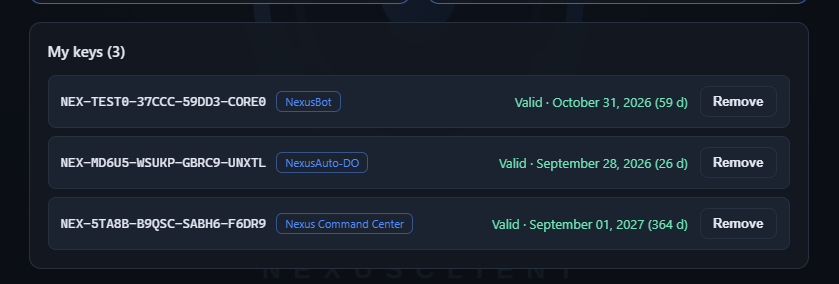
The launcher displays the status of each of your licences in real time:
- Key status — active, expired or pending.
- Time remaining — the number of days remaining until expiry.
- Related product — the tool to which the key is attached.
Go to the My Licences section of the launcher to view all your keys and their expiry dates at a glance.
NexusClient.eu
You can also view all your keys, the associated product and the time remaining on the nexusclient.eu website, in your personal account.
Tip
Remember to check the remaining validity of your keys regularly so that you aren’t interrupted in the middle of a session.